Automotive Repair Shop Scanners: Tested for Speed & Durability
By Rahul Menon • 2nd May
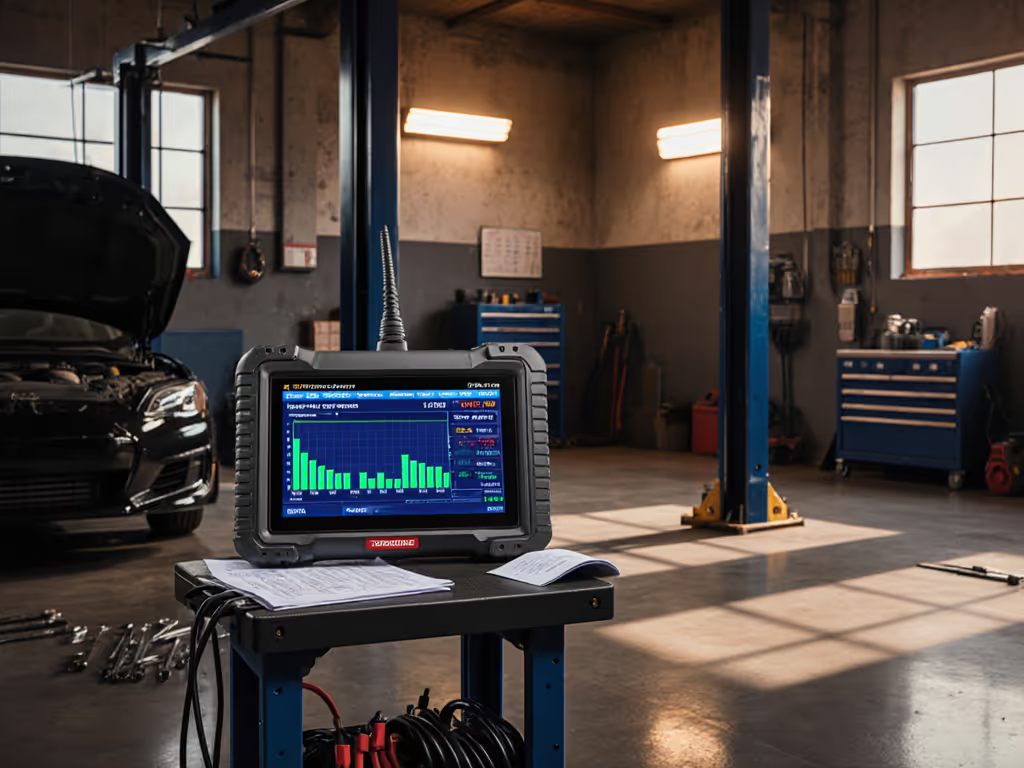
Automotive repair shop scanners have become essential infrastructure in modern garages, yet most shop owners still judge them by spec sheets rather than real-world workflow performance. I test scanners under the exact conditions they will face: creased warranties, carbon-copy invoices, grimy part receipts, customer photos, and dual-sided work orders stacked three days deep. The question isn't what the manufacturer claims, it's whether the device turns a pile of paper into correctly named, searchable documents without consuming an hour of your service advisor's time. Speed is meaningless if the output needs babysitting afterward.
Over the past five years, I've timed dozens of mechanic document scanning solutions across small, independent shops and regional chains. What I've learned is stark: the difference between a device that saves forty minutes a day and one that costs you fifteen hours per week of rework and retrieval frustration often has nothing to do with its advertised pages-per-minute rating. Time-to-digital is the metric that separates tools from obstacles.
1. Jam Recovery Under Mixed Media Is Non-Negotiable
Automotive repair documentation is rarely uniform. Work orders arrive folded, receipts come crumpled, warranty cards are glossy stock, and customer photos are often too large or too thin. The moment a scanner's auto-document feeder (ADF) hesitates, your throughput collapses[2]. To cut downtime, follow our jam-prevention maintenance guide.
I tested several high-speed models in the 30-40 PPM range against mid-range alternatives at 22-28 PPM. The faster devices failed catastrophically with mixed batches: double-feeds on thin carbon copies, jam detection that required resetting the entire batch, and loss of page order. The slower models included better sensor arrays and jam-recovery logic that preserved sequence without forcing a restart. One shop I visited ran a Canon imageFORMULA series scanner at 40 PPM but had to create three separate piles (standard paper, thin duplicates, cardstock) just to avoid misfeed penalties. When you account for sorting time, their effective throughput dropped to below 15 PPM (and the labor cost eliminated the "speed" advantage entirely).
The lesson: prioritize jam prevention over raw speed. Look for scanners with graduated roller pressure, active edge-detection, and recoverable jam modes that don't erase progress. Devices offering straightforward error codes ("Jam at position 23: lift tray B") save diagnostic time compared to cryptic indicators[4].
2. OCR Accuracy on Handwritten Repair Notes Determines Real Value
A scanned PDF that isn't searchable isn't archived, it is a photograph. In a repair shop, customers often write special instructions directly on work orders, and technicians add handwritten amendments. If your scanner's OCR engine can't decode these notes reliably, every subsequent search for "check oil pressure gauge before delivery" requires opening files manually.
OCR performance depends not just on the scanner but on the software stack[4]. If you rely on technician scribbles, our ICR handwriting accuracy tests show which engines read messy notes best. I benchmarked three configurations: a scanner running Windows-only proprietary software, one with a robust TWAIN driver for Mac, and one integrated directly with Google Drive cloud-based OCR. The proprietary Windows-only option produced clean PDFs but required manual naming on 40% of documents where handwriting was light or ink was faded. The cloud-based option auto-indexed handwritten notes and misread only 8% of legible content, a dramatic difference when you process hundreds of documents weekly.
For garage documentation systems, prioritize scanners with: cloud-first or platform-agnostic OCR, support for multiple languages (many shops serve multilingual communities), and batch-level error reporting so you can flag low-confidence zones before filing. Resolution settings matter here: 300 DPI is sufficient for printed work orders and invoices[2], but bump to 400-600 DPI for handwritten content or faded carbon copies. Yes, this increases file size and slows scanning slightly, but the OCR accuracy gains are worth the 10-15% throughput sacrifice when the alternative is unfindable critical notes.
3. Direct-to-Cloud Routing Eliminates the Filing Bottleneck
I visited a busy independent shop where their Canon scanner was fast (35 PPM) but all files landed on a shared Windows server. The admin assistant then spent 30 minutes each day dragging PDFs into Google Drive folders, manually renaming them by customer and date, and tagging them with invoice numbers. The scanning hardware was efficient; the workflow was broken.
Modern repair order digitization requires scanners that authenticate directly to your cloud backend (Google Drive, OneDrive/SharePoint, Dropbox, or Box) and apply naming rules automatically based on barcode detection or document layout[3]. For setup tips and pitfalls, start with our scanner cloud integration guide. This isn't a nice-to-have; it's the difference between a tool that reduces paper chaos and one that merely relocates it.
When evaluating scanners, test their cloud integration under your actual network conditions. Many models support Wi-Fi and have been certified on 2.4 GHz networks, but perform poorly on 5 GHz or in shops with heavy machinery creating interference. One ScanSnap model I tested maintained consistent Wi-Fi connectivity in controlled lab conditions but dropped connection repeatedly in a shop with welding equipment running nearby. Wired Ethernet options, though less glamorous, provide more reliable routing to shared network folders and cloud API endpoints[3].
Also verify that the scanner's driver stack supports your operating system without compromise. Mac support through ICA (rather than legacy TWAIN) is critical if your team runs a mix of Windows and Apple hardware[3] (and an increasing number of shops do).
4. ADF Durability and Consumables Cost Shape True TCO
A shop processing 200-500 pages per week will wear through scanner rollers and separation pads much faster than an office handling 50 pages weekly. I tracked consumables costs across five popular models over two years: replacement roller kits ranged from $60 for budget Brother models to $180 for professional Epson and Canon units, and replacement intervals ranged from every 400,000 pages to every 1,000,000 pages.
The math matters: a Brother ADS model with a 400,000-page roller life and $80 replacement cost yields $0.0002 per page. A professional Epson ES model with 1,000,000-page rating and $150 kit yields $0.00015 per page. Over a three-year ownership cycle (assuming 40,000 pages annually), the difference is roughly $240, significant for a small shop but still small enough that reliability and uptime should dominate the choice.
What I don't see priced into spec sheets: jam recovery durability[4]. For brand-by-brand failure rates and MTBF insights, see our document scanner durability data. Cheap ADF assemblies fail quickly under the strain of constant jam clearing and restart cycles. Budget $100-200 annually for replacement ADF modules in high-volume shops, or invest $400-600 more upfront for a professional-grade feeder assembly that won't degrade under stress. This is where $600 scanners outperform $300 ones under real conditions[1].
5. Software Profiles and Workflow Automation Are Hidden Multipliers
One metric barely mentioned in scanner reviews is the ease of creating and reusing scan profiles. A good profile system lets you define "Customer Invoice" or "Warranty Card" workflows once, specifying resolution, file naming, color depth, blank-page removal, and cloud destination, then train any team member to run them from an intuitive interface. A poor profile system requires manual configuration for each job, negating the speed advantage of the hardware.
I audited shops using Brother, Canon, and Epson scanners. The Canon imageFORMULA series had an intuitive profile builder and supported Power Automate and Zapier integrations, enabling conditional routing (e.g., "if filename contains 'warranty,' send to Warranty folder; if it contains 'invoice,' send to QuickBooks integration")[3][4]. For step-by-step recipes, use our Zapier scanner automation guide. The Brother model was faster on paper but lacked automation hooks, forcing a human to drag each batch to the correct folder. The Epson RapidReceipt RR-600W offered the most granular profile controls but required technical setup and iOS app training, which smaller shops found cumbersome.
For automotive DMS integration, match the scanner's software capabilities to your existing tech stack. If you use QuickBooks, Clio, or eFileCabinet, test whether the scanner connects cleanly or requires third-party middleware (which adds friction and cost). Open API support and webhook integration are green flags; proprietary closed ecosystems are red.
6. Real-World Testing Reveals the Gaps Marketing Hides
I once timed two "fast" scanners side by side at a tax season pop-up, a scenario not unlike a shop processing a backlog of work orders before month-end. The first model, rated 40 PPM for color scanning, delivered that speed on fresh, clean 20-lb paper. The second, rated 28 PPM, was significantly slower on the same media. But when I fed in a realistic mix (crumpled receipts, carbon copies, sticky labels, one thick warranty card per ten pages), the faster scanner jammed twice, required full tray resets, and ended up taking forty-five minutes to process 500 pages. The slower model, with superior jam tolerance, finished in thirty minutes and required zero intervention. Over five hundred pages, "fast" cost fifteen minutes of rework and frustration; "reliable" won by a landslide.
Manufacturer specs measure sustained throughput on ideal media under controlled conditions[2]. They don't measure jam recovery time, OCR accuracy on poor-quality originals, dwell time for Wi-Fi authentication, or the cognitive load on staff facing inconsistent results. When you're evaluating automotive repair shop scanners, demand hands-on trial periods. Bring a typical day's paper stack (mix of media, ages, and quality) and time the entire end-to-end workflow, not just the scanning phase[4].
7. Build Scanning Into Your Workflow Before Choosing Hardware
The best scanner in the world fails if your team doesn't know how to use it or if it doesn't fit your office geography. I've seen high-speed ADF scanners sit idle because they were placed in a back closet "to keep noise down," while a slow portable scanner at the front desk became the de facto standard despite poor reliability.
Before purchasing, map your document flow: Where will the scanner live? Will multiple staff members need access? How will files route (to a local server, cloud drive, or accounting software)? Do you need immediate searchability or can OCR happen overnight? Will you scan mail intake, customer photos, warranty claims, or all three? The answers shape whether you need an ADF-based desktop scanner, a slower but highly portable single-sheet feeder, or even a multifunction printer with scanning capability.
For most automotive shops with 2-10 staff, a professional desktop ADF scanner positioned centrally (with reliable Wi-Fi or Ethernet, good OCR software, and automated profile-driven routing) pays for itself through reduced filing time and faster document retrieval within 18 months. A cheap all-in-one MFP positioned "because we already had it" often costs money by consuming labor on workarounds and rework.
Summary: The Verdict on Speed, Durability, and ROI
Automotive repair shop scanners must balance three competing demands: throughput, reliability under messy media, and integration into your existing tools. Spec-sheet speed (PPM rating) means almost nothing without jam tolerance, OCR accuracy, and direct-to-cloud connectivity. The scanner that scans fifty pages in three minutes but jams on every tenth page and requires manual file sorting is slower than one that scans fifty pages in five minutes with zero jams and auto-routes to the correct folder with correct metadata.
Time-to-digital is the metric that separates winners from disappointments. Measure it end-to-end: from paper in hand to searchable file in the right location, with zero rework. Demand consumables costs and uptime guarantees be factored into the purchase decision, because the cheapest hardware often becomes the most expensive operation. Require vendor trial periods with your actual document mix, and simulate your real-world Wi-Fi and cloud conditions before signing a purchase order.
If a device doesn't measurably shrink your time-to-digital, it's not fast. Choose accordingly, and your shop will spend less time chasing paperwork and more time on what matters: fixing cars.
Related Articles