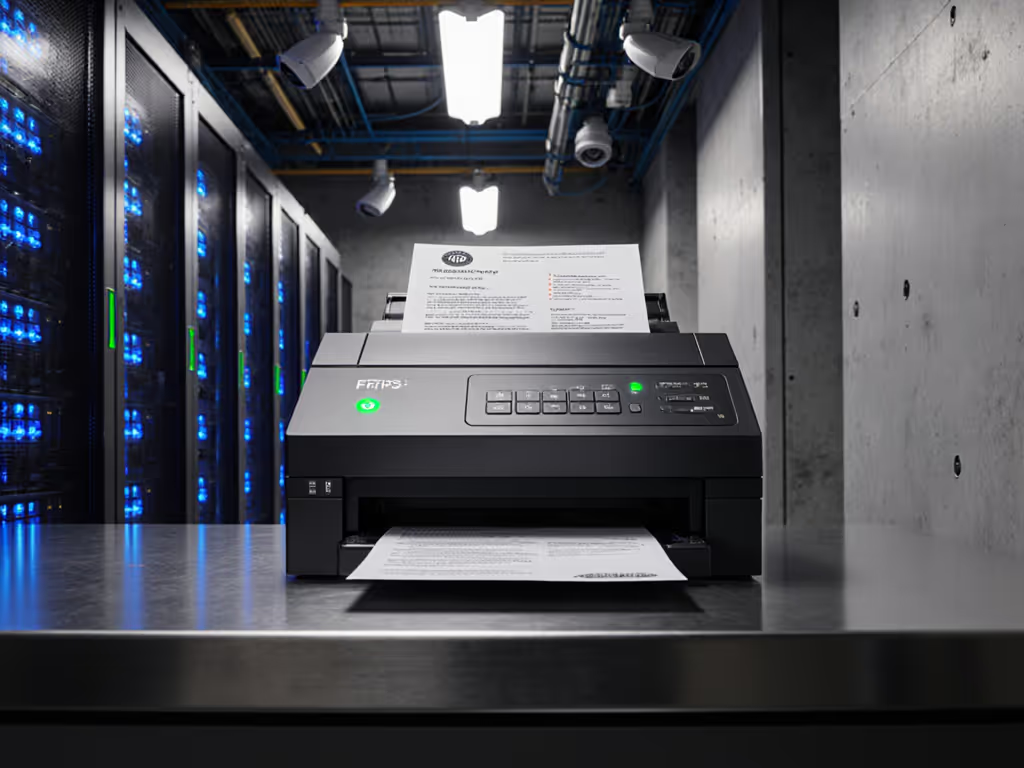
Offline-First Document Scanning: Remote Sync Guide
By Luca Moretti • 4th Apr

When connectivity vanishes, so do most scanning workflows (unless your document scanner is built for low-connectivity scanning solutions from the ground up). This guide walks you through the mechanics of offline-first capture, intelligent queuing, and reliable synchronization that keeps your remote teams productive whether they're in a warehouse, a field office, or working from home during a network outage.
What Is Offline-First Scanning, and Why Should Small Teams Care?
Offline-first scanning means your device (phone, tablet, or dedicated scanner) can capture, process, and store documents completely locally without requiring an internet connection at the moment of scan. Processing happens on-device using local machine learning algorithms; once connectivity returns, queued work synchronizes automatically to your cloud storage or backend system. To understand how local processing reduces latency and cloud dependency, see our guide to edge computing for document scanning.
For owner-operators and small office teams, this matters because:
- Continuity: Field agents, site inspectors, and remote staff don't pause work when Wi-Fi drops or mobile signal falters.
- Batch resilience: A power cycle or network hiccup doesn't erase a morning's worth of scanned invoices or compliance forms.
- Predictable latency: You control when and how data syncs, rather than waiting for cloud processing to complete on uncertain bandwidth.
- Privacy and compliance: Sensitive documents (medical intake forms, legal agreements, financial receipts) can be encrypted and processed locally before any cloud transmission.
This architecture mirrors what field-operations teams learned over the past decade: integrations should click once and stay clicked through updates. When your scan workflow depends on real-time cloud availability, a provider's API change, a TLS certificate rotation, or a regional outage breaks the entire chain. Offline-first decouples capture from transmission, so the two can fail independently.
FAQ: Offline-First Scanning Workflows for Remote Teams
1. How Does Offline Data Capture Actually Work?
Modern offline-first scanning uses three layers:
Capture & Enhancement (Purely Local) When you open your scanning app, the camera or ADF hardware feeds images into local processors. The device immediately applies edge detection, perspective correction, blur detection, and color normalization, all using on-device machine learning models that ship with the app. No internet call is needed.
For example, recent versions of commercial OCR tools now run inference directly using Apple's Vision framework (iOS) or Google's ML Kit (Android). These frameworks optimize for low power consumption and run on-device without uploading raw images. The accuracy rate for clean printed text exceeds 94% in offline mode, as confirmed by recent industry reports on mobile OCR benchmarks. For implementation tips and engine selection, read how to achieve searchable scans with reliable OCR.
Intelligent Queuing (The Sync Mechanism) Once a document is scanned, enhanced, and ready, the app stores it in a local database (typically SQLite or a similar embedded system). If structured data extraction (e.g., pulling amounts from a receipt, or fields from a form) is needed, the app queues that task. The queue tracks:
- Document ID and file path
- Processing state (captured, cropped, enhanced, pending upload)
- Timestamp and user (for audit trails)
- Retry count and error log
Logs or it didn't happen: Every state transition (capture, enhancement, failure) gets logged. When troubleshooting sync delays or lost documents weeks later, those logs reveal whether a network drop corrupted the queue or whether a permissions issue on the backend blocked the upload.
Automatic Sync on Reconnection The moment your device regains connectivity (Wi-Fi, cellular, or wired), the app detects it and begins draining the queue. Queued tasks execute in order, with automatic retry logic for transient failures (timeouts, rate limits). If a cloud endpoint is temporarily unavailable, the app backs off exponentially rather than hammering the API.
2. What Document Types Work Fully Offline?
Always available offline:
- Image capture, auto-crop, and perspective correction
- Deskew and blank-page removal
- Local OCR (character recognition from printed or clear handwritten text)
- Data extraction from barcodes, QR codes, or magnetic stripes (credit cards, IDs)
- PDF assembly and encryption (AES-256)
- Local database storage and search
Requires cloud or backend connectivity:
- Complex data extraction from unstructured documents (e.g., parsing line items from invoices with varying formats)
- Handwriting recognition at scale (requires larger models and cloud training data)
- Document classification by content (legal vs. medical vs. financial, using deep neural networks)
- Multi-language OCR or layout analysis for non-Latin scripts
- Integration with downstream systems (Google Drive, OneDrive/SharePoint, accounting software)
The distinction matters: Remote area digitization doesn't mean zero server calls forever. It means you can digitize offline, then sync when practical (overnight, on a scheduled basis, or when the user plugs into a docking station with fiber).
3. How Do You Set Up a Reliable Offline-to-Cloud Pipeline?
A minimalist, step-by-step approach:
Step 1: Choose a Mobile Platform & Local Storage Model Decide whether your primary scanner is:
- A smartphone or tablet running iOS, Android, or both
- A dedicated mobile device (e.g., industrial tablet with barcode scanner)
- A desktop or laptop with a USB scanner for occasional use
For each, select an app that uses vendor-neutral local storage. SQLite-backed apps are preferable because:
- Data is accessible to you, not locked in a proprietary format
- Backups and migration are straightforward
- You can audit the database schema to confirm documents are actually stored
Step 2: Configure Local OCR & Data Extraction Enable the app's offline OCR setting and verify it's using on-device models. Confirm that:
- The app's settings menu shows "Offline Mode: Enabled" or similar
- Model files are downloaded and stored locally (not cloud-dependent)
- You can run a test scan without internet to confirm OCR returns results
Step 3: Set Up Cloud Authentication & Routing Configure the app's cloud connector (Google Drive, OneDrive, Dropbox, Box, or your custom API endpoint) before you take production scans: For architecture options and best practices, see our scanner cloud integration guide.
- Generate and store credentials securely (OAuth tokens, API keys, certificates)
- Create a test folder in your destination cloud storage
- Perform a manual "sync now" test with a dummy document to confirm the pipeline is live
- Check your cloud provider's audit logs to verify the upload succeeded
This step is critical and often skipped. Many teams discover mid-deployment that API permissions are wrong, OAuth tokens expired, or the SharePoint site is in a different tenant. Testing first prevents the scenario where 200 offline scans queue up and fail silently.
Step 4: Define Naming & Routing Rules You'll want scans to land in the correct folder with consistent naming. Options:
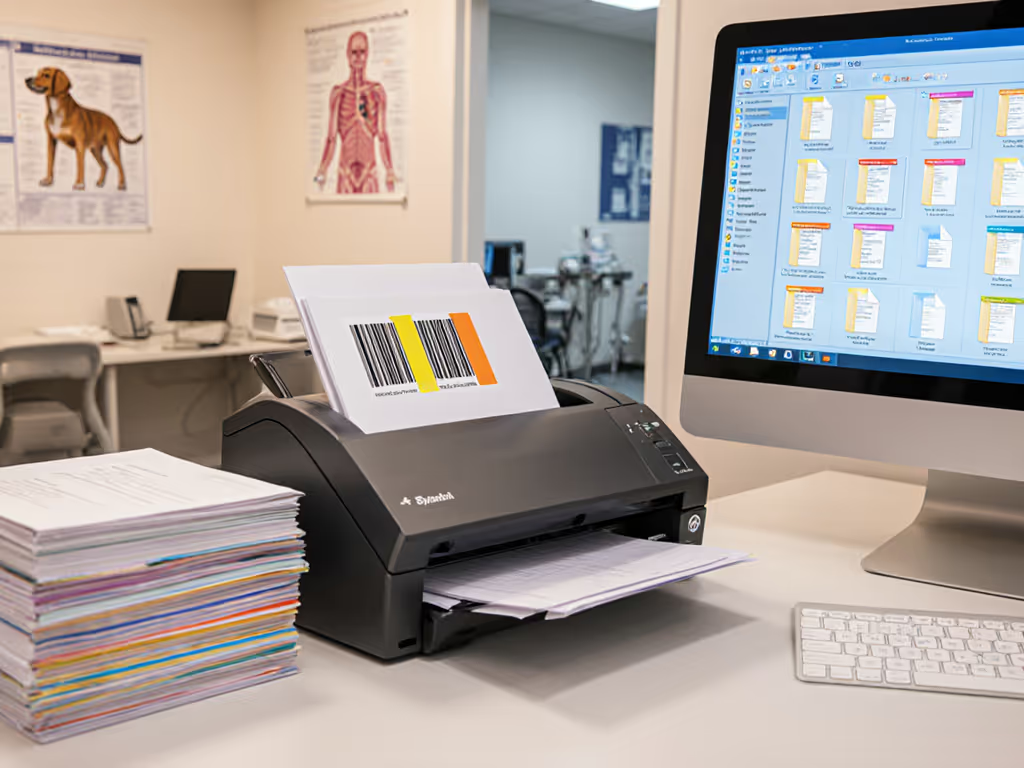
- Barcode separation: Embed a barcode on a divider sheet between batches. The app reads it and routes documents to that client/project folder.
- Timestamp + user: Auto-name as
2026-04-04_TeamMember_001.pdf, then rely on cloud-side folders (by date, by person) to organize. - Manual profile selection: Offer a dropdown before scanning ("Invoices," "Client Intake," "Receipts") and use that to set the destination folder and file-naming convention.
For low-friction workflows, batch separation by barcode is the fastest: scan the barcode, then feed your stack, and the app automatically labels each page with the batch ID for later grouping.
Step 5: Validate Sync Completion Set up a post-sync check:
- Enable notifications: the app alerts you when all queued items have uploaded.
- Spot-check the cloud folder periodically to confirm files arrived with correct names and metadata.
- Review the app's sync log (often hidden in a debug menu) to see which files uploaded when, and any errors.
Again, logs or it didn't happen: If you don't inspect the log, you can't distinguish between a user who didn't actually sync and a backend issue that ate the upload.
4. What Happens If Network Drops Mid-Scan?
A well-designed offline-first app never loses a capture. Here's the defensive design:
- Atomic writes: Each scan (including enhancements) is written to local storage before the app signals "success" to the user. No intermediate state can be lost.
- Queue durability: Sync tasks are persisted to disk immediately; a power loss won't orphan them.
- Graceful degradation: If cloud connectivity is needed for a step the app can't do offline (e.g., deep layout analysis), the app queues the task and continues to the next document. It doesn't halt the user's workflow.
Example scenario: A field adjuster scans 30 claims while moving between sites, with patchy 4G coverage. The app captures and crops all 30 locally, queues data extraction tasks, and uploads metadata to the backend whenever signal spikes. Two days later, when the adjuster docks at the office, any pending extractions and re-uploads finish automatically.
5. Where Do Offline-First Workflows Break?
Integration brittleness: Many teams adopt offline-first capture but fail to secure the sync layer. A firewall change, a VPN certificate expiration, or a backend API version bump can silently break uploads while the app still shows "success" locally. Mitigation: log every sync attempt (success and failure), and audit that log weekly.
Inconsistent naming conventions: Offline-first tools can't always infer the right destination folder from a document image alone. If users skip the "select folder" step or choose wrong, you'll have scans landing in random places. Mitigation: enforce a barcode or profile selection that gates the scan button.
Incomplete queues after updates: If the scanning app updates while scans are queued, some apps lose the queue. Mitigation: use an app with a clear data-persistence strategy, and test updates on a non-production device first.
Multi-user permissions chaos: If you're syncing to a shared SharePoint folder, ensure all team members have write access before deployment. Testing with a single account won't catch permission errors that hit user #2. Mitigation: test sync with a second user account from a different device.
Field Data Synchronization: Beyond the Device
Once documents arrive in your cloud storage, orchestrate the rest of the workflow using disconnected scanning environments (automation tools that don't require manual steps). Power Automate, Zapier, or similar platforms can: For step-by-step patterns that keep control and auditability, see our guide to secure Zapier scanner automation.
- Trigger when a new PDF lands in OneDrive
- Extract metadata (OCR text, barcode, timestamps)
- Route to the correct CRM, accounting system, or DMS
- Send alerts or log entries for audit compliance
- Retry failed handoffs without losing the document
This is where the infrastructure decision (offline-first capture + cloud sync + workflow automation) delivers real velocity. A small law firm that once lost scans during Windows updates can now rebuild its pipeline: TWAIN to watch folder, barcode separation, then a Power Automate flow to SharePoint with versioning and alerts. After that, updates happen, documents land, and nobody asks, 'Did the scanner lose it?'
Next Steps: Building Your Offline-Ready Setup
Start by auditing your current workflow:
- Map downtime: How often does your team lose connectivity? Hours per week, or rare?
- Quantify rework: When scans fail to sync or documents vanish, how many staff hours do you spend recovering?
- Identify bottlenecks: Is capture fast but filing slow? Is OCR accuracy your limit?
- Test offline capability: Download a candidate scanning app, enable offline mode, and run 20 test scans without internet. Then sync and verify.
- Prototype your queue: Build a small Power Automate or Zapier flow that processes one incoming document correctly. Expand from there.
Offline-first isn't a trendy phrase, it's a discipline. It means capturing data where it's safest (local, encrypted), then syncing it to the cloud on a schedule you control, with logs at every step. For remote teams and field operations, that discipline converts lost documents from a chronic frustration into an edge in reliability and speed.
Related Articles