Scanner API Comparison: Build Reliable Workflows
By Taye Okonkwo • 3rd Dec
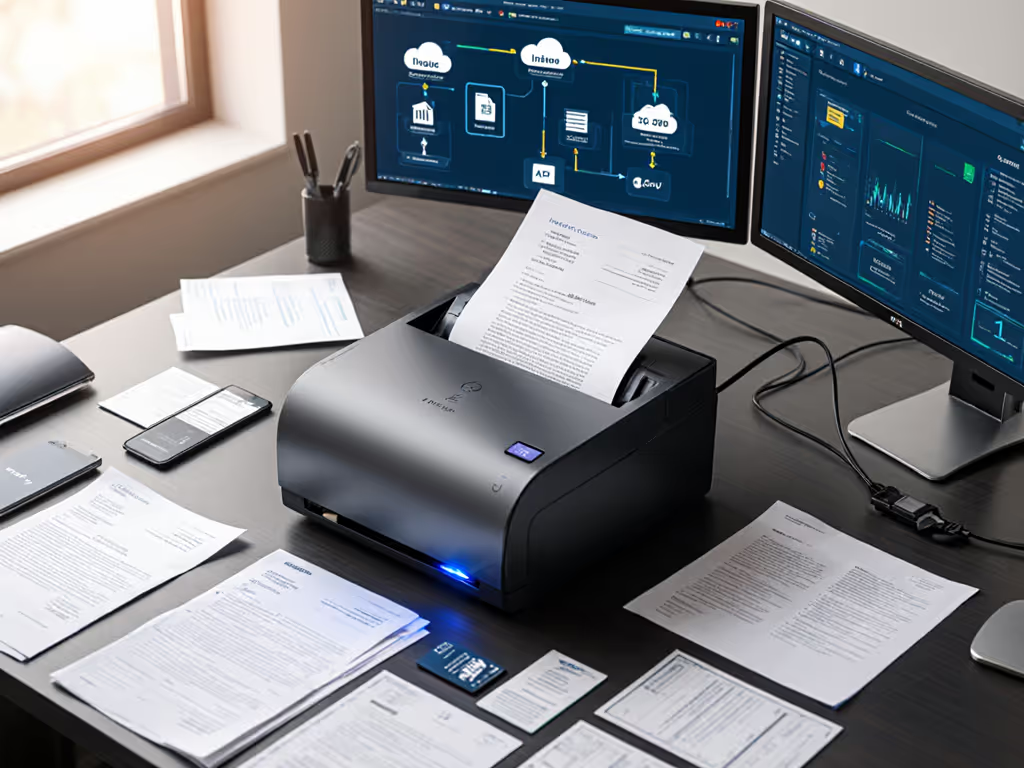
If your team dreads the Monday morning paper pile-up, a smart scanner API comparison could be your secret weapon. Forget confusing tech specs, the right document scanner setup transforms chaotic stacks into searchable, perfectly filed digital files with one button press. As someone who's watched volunteers panic over jammed scanners, I'll show you how to build workflows that actually survive busy Mondays.
Why your current scanner setup feels like a time sink
You bought a "fast" scanner, but reality looks different: receipts crumpled in the ADF, PDFs that won't search, or 20 clicks just to save to Google Drive. If "searchable PDF" is unreliable in your setup, compare engines in our OCR software comparison to pick one that stays accurate on real-world scans. Why? Most scanners ship with brittle software that assumes perfect conditions and technical users. Real life involves coffee-stained invoices, sleepy interns, and Wi-Fi that quits. If your workflow needs babysitting, it's not the scanner's fault (it's the missing link between hardware and your actual filing rules).
If it's fiddly, it won't survive Monday morning.
The real problem isn't scanning speed, it's end-to-end workflow speed. A "50 ppm" scanner taking 10 minutes to prep, scan, rename, and file loses to a slower tool that does it all automatically. Your team shouldn't need developer skills to route a client intake form.
What makes a workflow truly reliable (not just the scanner)
Reliable scanning isn't about megapixels, it's about consistency for non-tech staff. When I helped that nonprofit, we ignored the scanner's fancy OCR demo and mapped where volunteers actually got stuck: naming files and hunting for folders. Their "aha" moment? Matching colored sticky notes on paper stacks to one-button profiles that auto-routed to Drive with client names.
Here’s what actually matters for your team:
- Jam-proof handling for mixed stacks: Can it swallow receipts, IDs, and wrinkled contracts without constant supervision? The Canon ImageFORMULA DR-C225 II tackles this with a top-feed design that handles thick cards and receipts in one batch (no manual mode switching). Its straight paper path means fewer jams during high-volume days like tax season. For prevention tips and quick fixes, see our scanner maintenance guide to stop jams before they derail a batch.
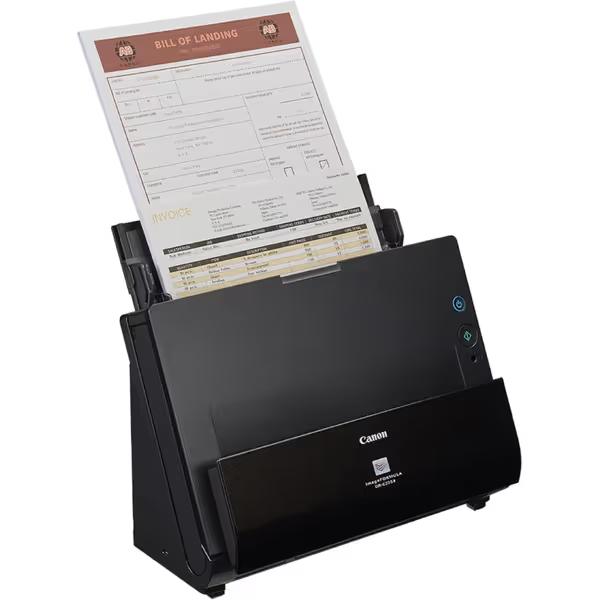
Canon ImageFORMULA DR-C225 II Office Document Scanner
Rapidly digitize documents to solve workflow bottlenecks and improve efficiency.
$287.97
Scan Speed25 ppm (duplex)
Scan Speed25 ppm (duplex)
Pros
Compact, upright design fits small spaces.
Reliably handles mixed document types (cards, receipts, long documents).
Direct scanning to cloud services and searchable PDFs.
Cons
Mixed feedback on scan quality consistency.
Some users report paper jam issues.
Customers find the scanner easy to use and appreciate its compact size that sits well on a desk. They consider it good value for money and praise its speed, with one customer noting it handles large medical documents efficiently.
Customers find the scanner easy to use and appreciate its compact size that sits well on a desk. They consider it good value for money and praise its speed, with one customer noting it handles large medical documents efficiently.
-
True one-button workflows: Your "scan to cloud" button should do everything: crop, OCR, name files using today's date/client ID, and drop them where your team expects. Proprietary developer SDKs for scanners like Docutain or Scanbot bake this into their tools (no coding needed). Open-source options (like ML Kit or OpenCV) can do this too, but require hours of tuning for edge cases like crumpled receipts.
-
Zero-config cloud routing: Staff shouldn't touch folder paths. The best scanner automation tools use rules like "If filename contains 'INV-', send to QuickBooks/Invoices" with automatic reconnection if Wi-Fi drops. For end-to-end setup patterns and pitfalls, read our scanner cloud integration guide. Bonus: authenticated logins so scanned tax docs don't accidentally land in a public folder.
How to train staff once and succeed daily
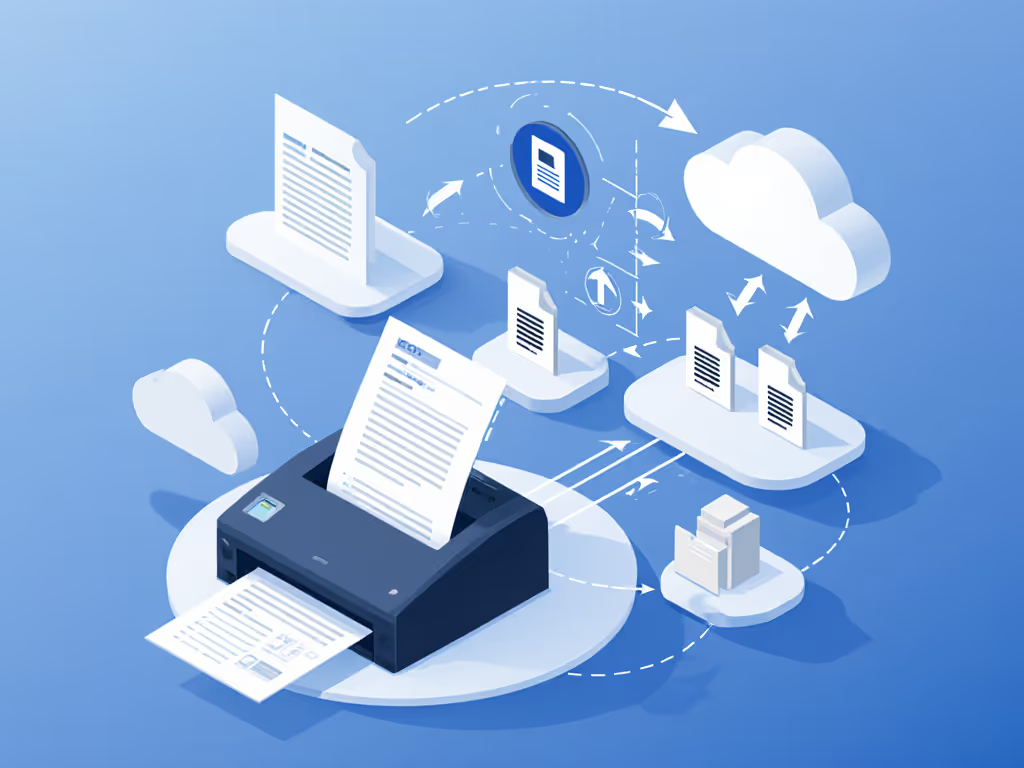
Your admin shouldn't need a manual. The magic happens when your least technical person can run the scanner flawlessly before coffee kicks in. Remember that nonprofit? We added a color-coded coversheet (blue = new clients, yellow = forms renewal). Scan the sheet -> auto-routes to the correct Drive folder with OCR-extracted case numbers. Train once; succeed daily.
Your turn:
- Ditch the generic "Scan" button. Create labeled profiles: "Client Intake", "Expense Receipts", or "Insurance Claims" with preset naming rules.
- Example: "Client Intake" = Scans -> PDF/A -> Names file
ClientLastName_Date_Intake.pdf-> Sends toGoogle Drive/Clients/Active/
-
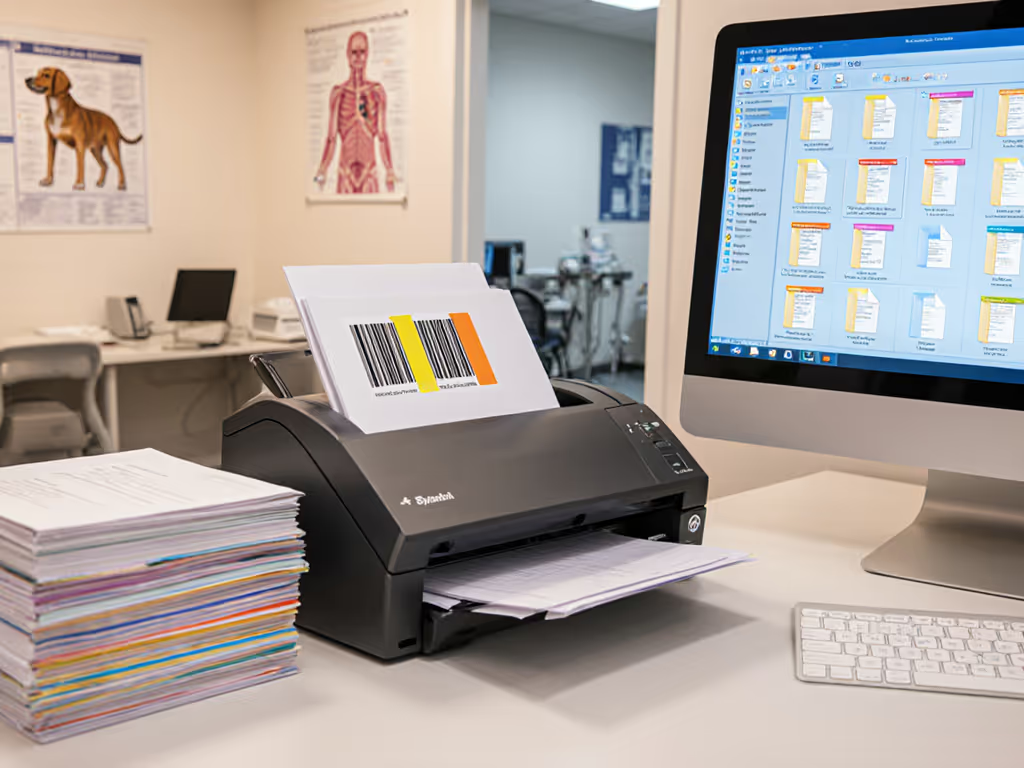
Use physical cues like barcode sheets or colored tabs. No extra software, just print a coversheet from your scanner's template library.
-
Test with eyes closed: Can someone scan a stack using only sound cues? Good workflows have beep = "done," boop = "jammed, press green button."
Why "cloud-ready" scanners still fail at routing
"Cloud-connected" often means your cloud connection headache. Most scanners save locally first, requiring staff to manually drag files to SharePoint, defeating the purpose. The fix? Scanner API comparison must focus on authenticated direct routing:
-
Avoid tools needing constant re-login. Look for background tokens that renew automatically (like Docutain's SDK). If your team sees "Sign in to Google Drive" weekly, skip it.
-
Check folder path flexibility. Can you scan directly to
OneDrive/ClientFiles/{ClientID}/Invoicesusing metadata from a coversheet? Homegrown SDKs often hardcode paths; mature tools let you build dynamic paths. -
Silent failure alerts matter. Does IT get notified when scans miss their target? Scanbot's SDK emails admins if 3 scans fail consecutively, no one has to remember to report issues.
Choosing without tech overwhelm: 3 questions to ask
Skip the "OCR accuracy" hype. Ask what your workflow truly needs:
- "Can my intern set this up alone?"
- Red flag: Needs registry edits or command-line tools.
- Win: Clear video guides showing profile creation (Canon's bundled software does this well).
- Pro tip: Try the vendor's demo on your network. If Wi-Fi scanning fails during the trial, it'll fail for Susan in accounting. Compare platforms in our wireless scanning systems roundup to see which stays connected without constant re-login.
- "What breaks when paper goes sideways?"
- Test with a messy stack: receipts + wrinkled contracts + a business card.
- Good tools auto-skip blanks, deskew skewed pages, and separate cards into individual files.
- Avoid SDKs that require perfect lighting, real offices have dim corners.
- "Is support for my use case?"
- Warning: "We support developers" = you'll get code snippets, not workflow fixes.
- Green light: Providers like Scanbot offer pre-built templates for medical intake or real estate (e.g., "scan this form -> auto-populate Clio fields").
Your next step: Pilot the "Monday Morning Test"
Don't buy based on specs. Run this 20-minute test:
- Grab a messy stack: Include receipts, a crumpled invoice, and a thick insurance form.
- Hand it to your least patient staff member. Give no instructions beyond "Scan these for Friday's filing."
- Time them from stack to filed PDFs. Note:
- How many clicks?
- Did they rename files?
- Did scans land in the right cloud folder?
If it takes >5 minutes or they curse once, keep looking. The right scanner API comparison ends with tools that work on your terms, not in a lab. When your team stops apologizing for paper piles, you'll know you've built something that lasts.
Train once; succeed daily isn't just a phrase, it's your new normal.
Related Articles