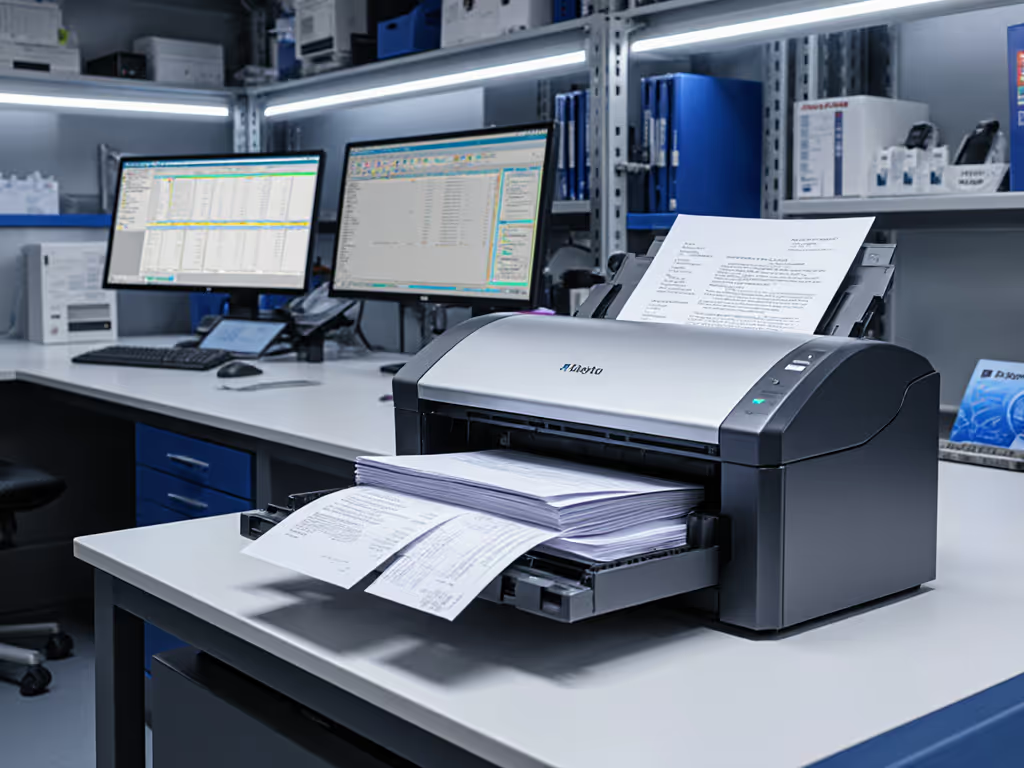
Disaster Response Scanners: Head-to-Head
By Luca Moretti • 15th Feb
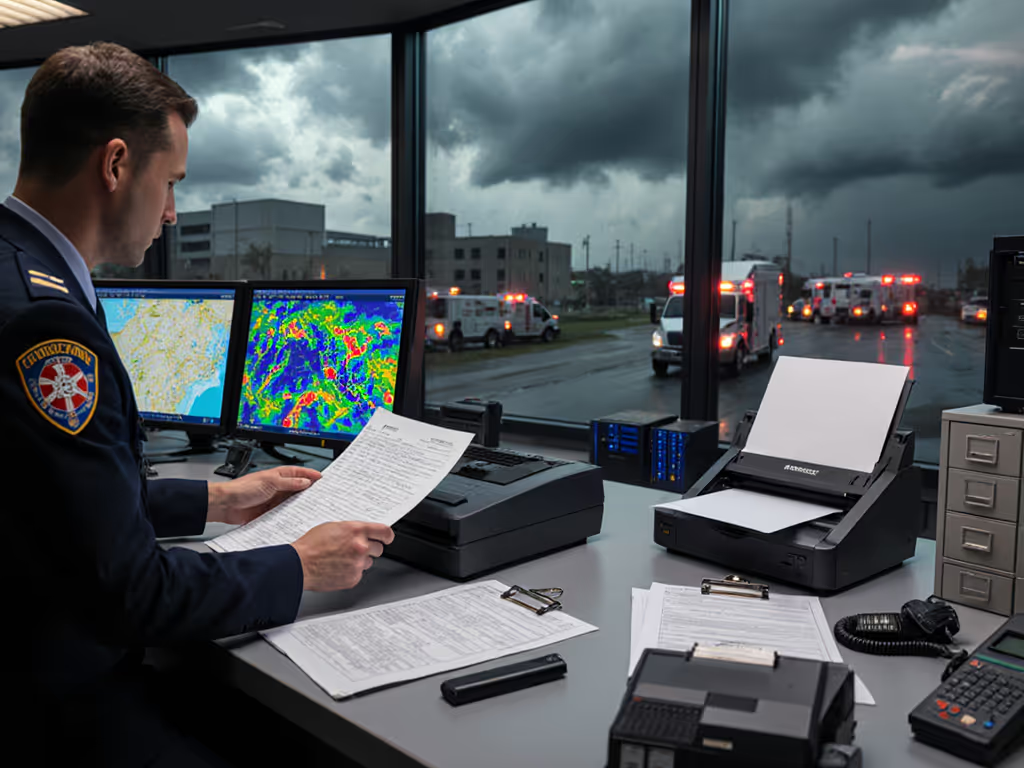
What Counts as a "Disaster Response" Scanner?
When operations managers in law firms, nonprofits, insurance agencies, and disaster relief organizations ask about disaster response scanner comparison solutions, they're rarely asking about radio equipment. They're asking: How do I capture critical documents (intake forms, damage assessments, medical records, financial affidavits) in a crisis, when power is unstable, networks are congested, and every minute costs someone money or safety?
A disaster response scanner isn't a luxury. It is a field-deployable document digitization tool that can operate in mobile command centers, temporary shelters, evacuation sites, or damaged facilities where filing cabinets have become rubble. The real question is not which scanner has the flashiest display: it is which one reliably converts paper to searchable, routable, compliant PDFs when chaos is the default state.
I've watched small organizations lose weeks of relief intake data because they tried to process documents through a standard office scanner after a hurricane. The scanner lived in a flooded first-floor office. The Wi-Fi dropped three times an hour. The USB cable was in someone's car. By the time they rebuilt the workflow, families had aged out of eligibility windows. That taught me: integrations should click once and stay clicked through updates (and in disaster scenarios, they need to click once and stay functional through chaos). For a step-by-step playbook, see our disaster recovery scanning workflows guide.
Portable vs. Stationary: Which Topology Wins in Crisis?
Portable Field Scanners: Speed and Mobility
Portable emergency field scanning devices prioritize battery life, ruggedness, and ability to route directly to cloud storage or a local database without requiring a full workstation. Most are handheld or briefcase-sized ADF (automatic document feeder) units with:
- Battery runtime: 4-8 hours per charge (often replaceable, industry-standard batteries)
- Connectivity: Wi-Fi, Ethernet, or USB-C tethering to a mobile hotspot or local server
- Durability rating: IP54 or better (dust and splash protection)
- OCR and routing: Built-in or cloud-connected, with ability to name files by barcode, QR code, or manual ID field
- Typical throughput: 25-40 pages per minute
A portable unit shines when:
- Your team is spread across multiple locations (hospitals, shelters, claims sites) and can't wait for a central hub
- Power infrastructure is uncertain (battery plus solar backup is viable)
- Documents must be uploaded hourly to a shared cloud folder or compliance database
- Physical space is temporary or tight
Stationary Command-Center Scanners: Throughput and Resilience
Stationary units anchor a mobile command center or temporary office. They typically:
- Require AC power (sometimes with UPS backup for brief outages)
- Offer higher speeds: 50-80 ppm for mixed media
- Include large-capacity hoppers: 200-500 sheets, reducing operator attention
- Support more robust OCR and indexing: Full-page recognition, table extraction, multi-language support
- Integrate deeply with legacy systems: TWAIN drivers, ODBC database connections, direct SMB share routing
They work best when:
- A fixed processing hub is feasible (even if temporary)
- Document volume justifies the footprint
- You need to batch-process and validate quality before upload
- Regulatory compliance requires audit trails on each scanned item
Six Questions to Map the Route Before You Scan
1. How Fragile Is Your Cloud Connection?
If your relief operation depends on real-time upload to Google Drive or SharePoint, a connectivity failure means either batch backlog or lost documents. The safest approach: local-first capture with deferred sync.
- Portable scanners with SD card storage or built-in NAS support let operators scan offline and sync when bandwidth returns
- Stationary units can queue to a local database and push to cloud via a scheduled job, retrying on failure without blocking intake
Map the route: Which cloud provider is your system of record? Does the scanner vendor offer native connectors (OneDrive, Google Workspace, Dropbox, Box)? If not, use a middleware like Power Automate or Zapier to bridge the gap (and test that bridge under poor network conditions before the crisis hits). Get architecture tips in our scanner cloud integration guide.
2. What's Your OCR Accuracy Floor?
In disaster scenarios, you're scanning handwritten forms, water-damaged documents, wrinkled printouts, and photos. Standard OCR struggles here. Your threshold matters:
- High-stakes documents (medical release forms, financial affidavits, insurance claims): You need human review. Aim for 95%+ accuracy and flag suspect fields.
- Support documents (intake notes, repair photos, damage maps): 80%+ is acceptable if the original is retained and searchable by date/ID.
Portable units often offload OCR to cloud APIs (Google Cloud Vision, Azure Computer Vision, AWS Textract), which handle variance better than embedded engines. Stationary units may include local OCR to avoid network dependency.
Test your chosen OCR on real disaster-domain documents before deployment: wrinkled receipts, handwritten signatures, photos taken on-site. Set targets and review steps with our reliable OCR implementation guide.
3. Will Mixed Media Jam Your Workflow?
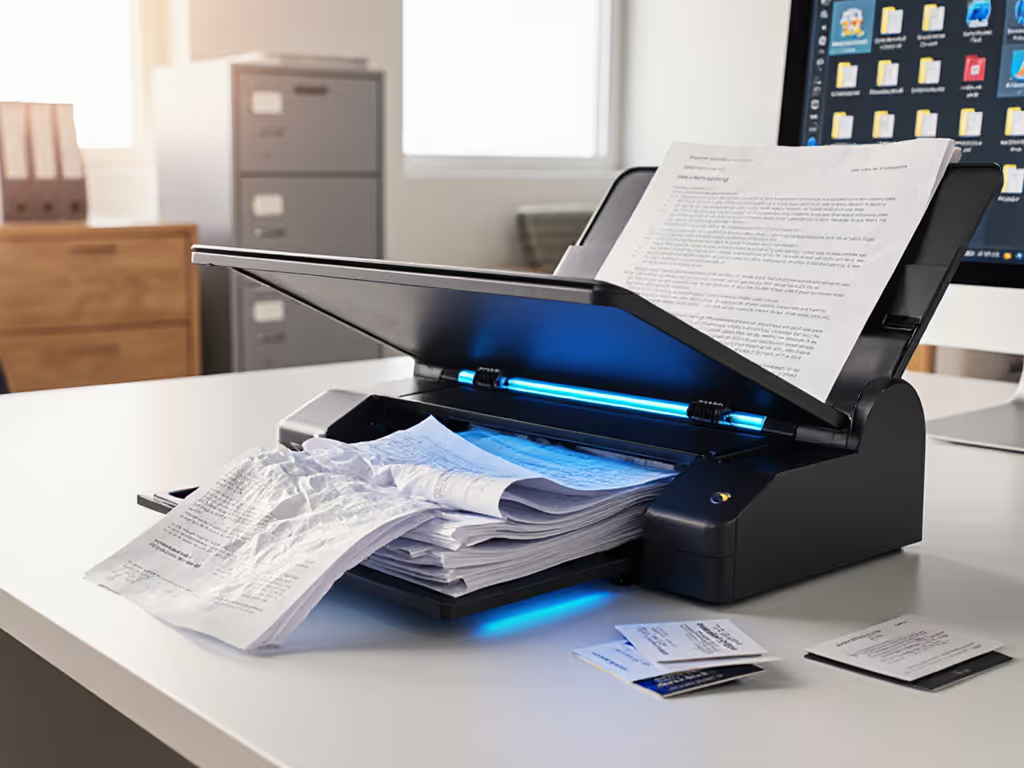
Disaster intake almost always includes odd sizes and materials:
- Receipts (2 x 3 in., thermal, brittle)
- ID cards (rigid, sometimes laminated)
- Photos (thick, glossy)
- Multi-page forms (stapled, sometimes mixed orientation)
Most ADF scanners handle this via:
- Adjustable input trays with ultrasonic separation to detect multifeed
- Manual feed slots for thick or rigid items (slower but safer)
- Post-processing filters: Blank page removal, auto-rotate, perspective correction
If your documents are consistently mixed, a portable scanner with a large manual feed slot and lenient media settings will reduce jams. To prevent slowdowns, follow the practices in our scanner maintenance guide. Stationary units with mixed-media hoppers (separation pads, keratin rollers, nip-point sensors) survive higher volumes but need more maintenance in dusty or damp environments.
4. Can Non-Technical Staff Operate the Workflow?
In a crisis, you won't have a dedicated scanner technician. Your volunteers must be able to:
- Power on, load documents, and start a scan job in under 2 minutes
- Know which naming convention or barcode to use
- Spot a jam without panicking or damaging the unit
- Resume a paused batch if the scanner restarts
This favors simple, field-deployable scanners with:
- One-button or preset profiles: "Intake Forms," "Insurance Claims," "Medical Records" with all routing and OCR pre-set
- Clear visual feedback: Lights, screen messages, or simple audio cues for success, error, or low battery
- Minimal software: Built-in scanning (not a desktop app) or a mobile app that syncs to cloud
- Physical durability: Resistant to rough handling and minor spills
5. What Compliance Burden Applies?
Disaster relief often involves regulated data:
- HIPAA (medical): Encrypted storage, audit logs, role-based access
- GLBA (financial): Secure disposal, encryption at rest and in transit
- State data privacy (California, UK, Australia): Consent tracking, data minimization
- Nonprofit tax: Donor records, grant documentation, retention policies
Your scanner should support:
- PDF/A-3 or better: Long-term archival format
- Encryption: AES-256 for files before cloud upload
- User authentication: Role-based access on the device or upstream system
- Audit trail: Logging of who scanned what, when, and where it went
Portable units often rely on cloud-side compliance controls (e.g., SharePoint Information Rights Management). Stationary units may include local encryption and logging. For healthcare deployments, compare options in our HIPAA-compliant scanner roundup.
6. How Will You Route Documents to the Right Home?
After emergency management scanning, documents must land in the right folder, with the right metadata, and the right access controls. Brittle routing breaks under volume.
Robust approaches:
- Barcode or QR-code separation: Each disaster case gets a unique code. Staff inserts a patch sheet before each batch, and the scanner splits files automatically.
- Rules-based routing: "If document type = medical AND case ID = 2526-001, route to /SharePoint/Relief/Medical/2526-001/" and set permissions for the case manager.
- Deferred validation: Capture with minimal structure, then use a middleware workflow (Power Automate, custom Python, or an enterprise DMS) to classify, rename, and route in batch.
The key: Integrations should click once and stay clicked. If your routing logic requires manual tweaks every time a new case opens, you'll fail under volume. Build it once, parameterize it, and let it run.
Case Snapshot: Small Law Firm Disaster Recovery
A legal aid office serving disaster survivors collects intake forms, affidavits, insurance correspondence, and court documents. After a major event, they process 500-1,000 pages per day for 6 weeks. Their setup:
- Two portable scanners (4-hour battery, 30-ppm ADF) deployed to two intake desks
- Barcode separation by client matter
- Local capture to cloud-synced folder on a ruggedized laptop with Dropbox
- Power Automate flow: Every new file triggers OCR (Azure Computer Vision), extracts date and case ID, moves the file to /SharePoint/Cases/{CaseID}/, and notifies the case manager
- Monthly rotation of scanner consumables (separation rollers, feed pads) plus firmware updates during low-volume weeks
Result: Intake forms land in the right case folder within 30 minutes, searchable and accessible to paralegals. No jams since staff are trained to watch the manual feed slot and rotate thick documents through it. Disaster relief continues; paper is friction, not the bottleneck.
Analytical Summary: Your Weighting Framework
| Factor | Portable | Stationary | Hybrid Approach |
|---|---|---|---|
| Setup time | 10 min, battery or tethering | 30 min, AC + network | Deploy portable on Day 1, stationary by Week 2 |
| Uptime under chaos | High (battery, local storage) | Medium (depends on power, Wi-Fi) | Portable as failover; stationary for volume spike |
| OCR accuracy | 80-90% (cloud-dependent) | 90-95% (local or prioritized cloud) | Portable for intake, stationary for validation |
| Compliance prep | Encrypted cloud storage | Local encryption + logging | Both; verify chain of custody |
| Staff skill required | Low (one-button profiles) | Medium (driver, settings) | Low; standardize on portable workflow |
| TCO over 36 months | $1,200-2,500 per unit | $3,000-8,000 per unit | 2 portable + 1 stationary = $7,000-$13,000 |
Further Exploration
Your next step is to map the route before you scan. Start with your actual disaster or crisis documents, not hypothetical ones. Collect 50 real samples (mixed media, handwriting, damage), then test a portable unit's OCR and routing with a vendor trial. Check whether its cloud connectors (SharePoint, Google Drive, Dropbox) work reliably on your network, with your authentication scheme (MFA, corporate proxy, etc.). Verify that non-technical staff can load, scan, and recover from a jam in under 5 minutes.
If you're serious about compliance and audit trails, trial a stationary unit in parallel and measure throughput over a 2-week window under realistic volume. Then decide: one portable for speed and mobility, one stationary for resilience and compliance, or both in a hybrid model. The choice depends on your crisis profile, not on scanner marketing claims.
Related Articles