
Overlooked Scanner Security Risks in Hybrid Work
By Taye Okonkwo • 5th Dec
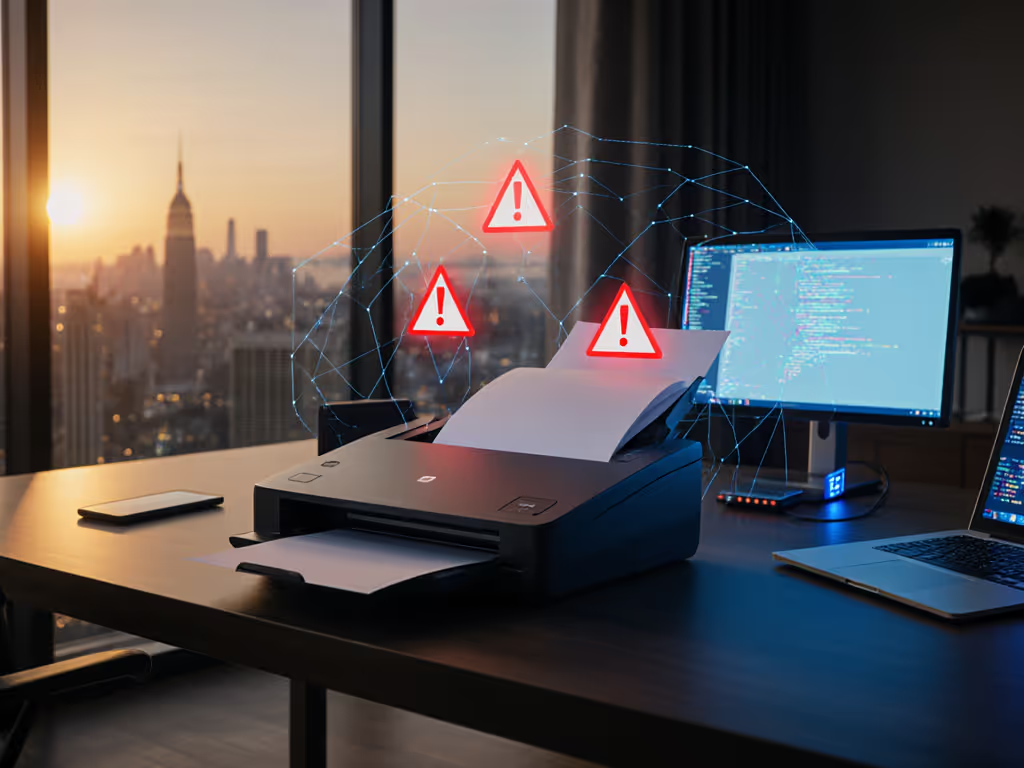
Your document scanner might be the weakest link in your office security, especially when staff scan from home or the office. Many small businesses treat scanners as "just printers," but they're actually networked computers handling sensitive data. In today's world of sophisticated scanner cybersecurity threats, one overlooked device can expose everything from client records to bank details. Let's tackle your top concerns about keeping scanning safe and simple for everyone on your team.
How can a simple document scanner become a security risk?
Think of your scanner as an IoT device (not just a paper feeder). Like smart thermostats or security cameras, modern scanners connect to your network, store document images temporarily, and often communicate with cloud services. Recent threat reports show attackers increasingly target unsecured endpoints like these, especially when they're left on home networks during hybrid work. A single unpatched scanner with weak credentials can become a backdoor into your entire system. This isn't just theory; cybersecurity analysts observed a 16.7% rise in automated scanning attacks in 2024, with threat actors mapping every vulnerable device they can find.
What specific scanner network security risks should I watch for?
Three dangers stand out in today's threat landscape:
- Unsecured network connections: Many office scanners default to open ports that allow remote access. Attackers can exploit these to intercept scans mid-transfer or even take control of the device.
- Outdated firmware: Like the recent Cisco VPN vulnerabilities mentioned in security bulletins, scanners with outdated software often contain known flaws that let attackers slip in unnoticed.
- Insecure cloud routing: If your scans route to cloud storage without proper authentication, sensitive documents might land in accessible folders, especially dangerous when staff work remotely.
Remember what happened at that busy nonprofit I helped: volunteers scanned client intake forms without understanding the risks. When we reviewed their setup, we found the scanner was broadcasting openly on the guest Wi-Fi network. One volunteer's home router compromise could have exposed hundreds of sensitive files.
Are PDFs really part of the scanner cybersecurity threat problem?
Yes, and it's getting worse. Recent reports show PDFs now rank as the top malicious attachment file type. Attackers embed malicious links in seemingly harmless documents that scanners then capture and route. Even scarier: 42% of malicious PDFs use obfuscated URLs that hide dangerous links behind innocent-looking text. When your scanner automatically converts paper documents to PDFs, it might unknowingly preserve these threats if you lack proper inspection steps. Privacy-conscious teams can reduce exposure by using edge document processing to analyze files locally before anything touches the cloud.
How do I check if my scanner has security gaps?
Skip the technical jargon, here's a practical three-step check anyone can do:
-
Physical inspection: Find your scanner's network settings menu (usually under "Setup" or "Network"). If you see "Anonymous" or "Guest" access enabled, that's a red flag.
-
Connection test: Ask someone to scan a document while you watch your cloud folder. If files appear without requiring login credentials each time, your authentication isn't tight enough.
-
Firmware check: Look for a "Support" or "About" section in settings. If the firmware version is more than 12 months old, it likely contains unpatched vulnerabilities.
If it's fiddly, it won't survive Monday morning. Simple checks like these work because they fit into real workflows.
What secure scanning protocols actually work for non-technical teams?
Forget complex security policies that gather dust. Implement these frictionless habits instead:
-
One-button secure scanning: Create profiles that handle everything in one click (like "Scan to Encrypted Drive Folder") so staff don't have to remember multiple steps.
-
Barcode coversheets: Place a simple barcode at the start of each batch that tells the scanner where to send files and what security level to apply. No training needed, just scan and walk away.
-
Auto-purge settings: Configure scanners to delete cached documents after 24 hours. This prevents stored data from becoming a target during breaches.
These solutions work because they align with my core belief: Automation succeeds when the least technical person succeeds first. When Sarah from accounting can secure scans as easily as printing, your whole system becomes stronger.
How do I protect against IoT device risks without slowing down my team?
Start with these low-friction steps that take under 15 minutes to set up:
-
Isolate scanners on your network: Most business routers let you create a separate "IoT" zone. Move scanners there so a compromise can't spread to accounting computers.
-
Enable mandatory login for cloud routing: Require staff to enter credentials once per session (not per scan) before sending to cloud storage. This stops accidental misrouting while keeping workflows smooth.
-
Set automatic firmware updates: Find this setting in your scanner's admin menu (usually under "Maintenance") and flip the switch. Your device will patch itself like a smartphone.
I recently helped a dental office implement these changes. For distributed teams, see our enterprise guide to hybrid-work scanning solutions that balance security, management, and ease of use. The receptionist now starts each shift with one scan of her barcode badge, which logs her in securely and configures the scanner for patient records. No more password reminders, no more accidental file sharing, and absolutely no security lectures that went in one ear and out the other.
What's the one action I should take today?
Right now, before you close this article, complete this security win:
- Walk to your scanner
- Press the network/settings button
- Find "Security" or "Access Control"
- Turn on "User Authentication" for cloud destinations
- Set scans to auto-delete from device memory after 24 hours
This takes most modern scanners under five minutes and blocks two major attack paths mentioned in the latest threat reports. If you handle patient data, review our HIPAA-compliant scanners to ensure encryption, authentication, and audit trails are covered. You'll sleep better knowing scanned documents aren't lingering on an unsecured device, and your team won't notice any extra steps in their daily routine.
Document security shouldn't mean complicated workflows. By designing simple, teachable setups (like the barcode system that vanished a nonprofit's backlog in one afternoon) you create protection that actually lasts. Train once; succeed daily with scanners that work securely whether your team's in the office or at home. When Sarah from accounting can handle it on a Monday morning, you know your system is truly secure.
Related Articles