ARM-Compatible Scanner Drivers: Fix Windows on ARM Workflows
By Luca Moretti • 8th Jan
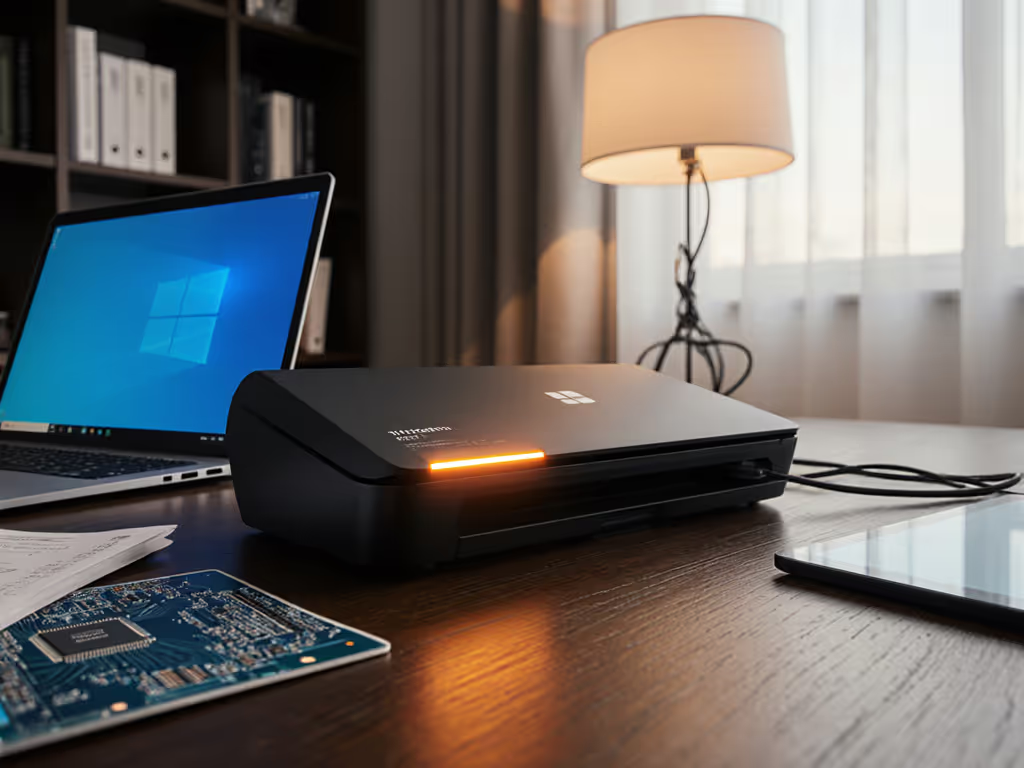
When your Windows on ARM device rejects your scanner after an update, it's not just an inconvenience, it's a workflow breaker. ARM-compatible scanner drivers are the unsung heroes ensuring your documents transition smoothly from physical to digital without manual intervention. For small business operators managing paper-heavy workflows, "Windows on ARM scanning" compatibility isn't optional, it's the foundation of reliable document capture that survives system updates. I've watched too many teams waste hours reprocessing scans after Windows updates shattered their fragile connections. The bottom line: if integrations are fragile, the workflow isn't real.
Why ARM Scanners Fail Where x86 Models Succeed
Windows on ARM processors (like those in Surface Pro 11 or Copilot+ PCs) require native ARM64 drivers. If spec terminology is fuzzy, start with our guide to understanding scanner specs. Unlike traditional Intel/AMD-based systems, ARM architecture can't automatically translate older drivers. When Epson, Canon, or Fujitsu scanners lack ARM64 drivers, Windows falls back to basic WIA (Windows Image Acquisition) functionality, often stripping critical features like:
- Batch separation via barcodes
- OCR processing
- Direct-to-cloud routing
- Document metadata injection
This isn't theoretical. I recently saw a medical practice lose three days of patient intake forms because their Fujitsu scanner stopped communicating with SharePoint after a Windows ARM update. The TWAIN driver simply vanished.
The frustration peaks when Copilot-Plus PC scanner compatibility becomes a deciding factor in hardware purchases. Vendors traditionally prioritized x86 driver support, leaving ARM users stranded until recently.
Which Brands Support ARM-Based Windows Scanners?
Epson leads with cross-platform ARM64 drivers for over 50 current and legacy models, including their WorkForce GT series. Their Universal Print Driver v2.90+ handles both printing and scanning on ARM systems, a rarity in the industry. Fujitsu (Scansnap) remains problematic; their latest models still lack official ARM64 support despite Surface Pro 11 adoption. Canon's approach is spotty: newer devices like the TR4522 require the Windows Store's "Windows Scan" app as a workaround since official drivers don't exist.
HP shows promise with their Smart UPD framework supporting select MFPs on ARM, though standalone scanners lag behind. The pattern is clear: brands investing in ARM-based Windows scanners now will dominate the $2.1B document capture market by 2027.
How to Verify Your Scanner Driver Compatibility
Don't trust marketing claims, test systematically:
- Check Windows Device Manager for "ARM64" under driver properties (not just "x64")
- Look for manufacturer-specific "Windows ARM" or "ARM64" driver labels
- Validate full feature parity by scanning with patch sheets and barcodes
- Monitor logs during Windows updates (more on this below)
A reliable litmus test: attempt a multi-page scan with barcode separation. For post-scan text accuracy and setup tips, see our guide to reliable OCR. If your scanner processes batch breaks without manual intervention post-update, you've got true ARM64 compatibility. If not, you're running on borrowed time until the next Windows patch breaks it.
Building Bulletproof ARM Scanning Workflows
When ARM-compatible scanner drivers are missing, you need architecture that sidesteps the dependency. Here's my vendor-neutral approach:
- Route through a watch folder: Configure scanners to dump PDFs to a local folder using native OS scanning tools (Windows Scan app or Image Capture on Mac)
- Add a lightweight router: Use PowerShell scripts or Power Automate to process files with these checks:
- File integrity verification (no incomplete scans)
- OCR validation (searchable text presence)
- Metadata injection (client ID, date, matter number)
- Implement versioned cloud drops: Route to SharePoint/OneDrive with retention policies instead of direct scanner integrations
This approach saved the small law firm referenced earlier. After Windows updates repeatedly broke their Scansnap to SharePoint connection, we rebuilt the pipeline using a watch folder + Power Automate flow with explicit failure alerts. For broader options and pitfalls, see our guide to scanner cloud integration. Updates happened, documents landed, and nobody asked, 'Did the scanner lose it?'
Why 'Logs or It Didn't Happen' Is Your New Mantra
Logs or it didn't happen (I've repeated this so often colleagues joke it's my middle name). Without detailed scanning logs, you're flying blind when updates break connections. Modern Windows scanning requires:
- Timestamped connection attempts
- Driver version tracking
- Error code capture (not just "scan failed")
- Post-OCR validation metrics
I recently debugged a healthcare client's vanished insurance forms by correlating Windows Update timestamps with driver unloading events in event logs. If you're responsible for securing these devices across remote teams, read our analysis of overlooked scanner security risks. The scanner hadn't failed, it was being systematically uninstalled by the update process. Logs provided the forensic evidence to rebuild the workflow with resilient mounting points.
The One-Click Standard for Modern Windows Scanning
Integrations should click once and stay clicked through updates. Anything requiring manual reconfiguration after OS updates isn't a solution, it's technical debt. For a strategic view of resilient design, see how to use scanners as automation engines. As Copilot-Plus PCs gain traction, demand ARM64 support explicitly:
- "Does your scanner include signed ARM64 drivers for all features?"
- "Show me the Windows Hardware Compatibility Program certification"
- "What's your timeline for legacy model support?"
Epson's roadmap through February 2026 (covering devices back to 2013) sets the benchmark. Others like Brother are catching up, but many remain silent, a red flag for business-critical workflows.
Your Next Steps for Reliable Scanning
Don't wait for the next Windows update to break your scanning. Audit your current setup today:
- Force a manual Windows Update on your ARM device right now... does scanning survive?
- Validate your cloud connector maintains permissions through updates (SharePoint often resets these)
- Implement basic log monitoring for scanner connectivity
True ARM-compatible scanner drivers aren't just about hardware compatibility, they are about workflow durability. When your scanning pipeline survives the chaos of Windows updates without manual babysitting, you'll finally achieve what businesses actually need: paper reduction that doesn't create new headaches.
For deeper technical validation, check Epson's ARM64 compatibility matrix or Microsoft's Windows Hardware Compatibility documentation. The field moves fast, what's unsupported today may have solutions tomorrow. But remember: if it requires constant tinkering, it's not a production-ready workflow.
Related Articles